Actor Console lets you read and change actor properties, call functions and watch values while your game is running.
Autocomplete helps you find actors, properties, components and functions. Suggestions show current values and function parameters. The console shows the result of each command.
You can use Actor Console in the in-game console, the Actor Console editor tab and the Output Log. It works in Play In Editor and packaged Debug and Development builds.
Enable Actor Console in Edit > Plugins and restart the editor if asked.
For this example, select a visible actor, such as a cube. In the commands below, replace MyActor with the name of the actor you select.
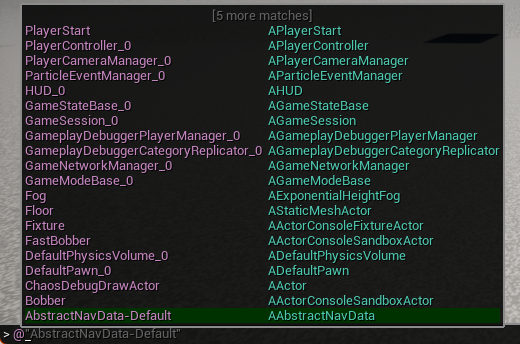
@ to see the actors in the level. Type a few letters of an actor's name, then press Tab to complete it.. to see its variables, components and functions. Type bHidden and press Enter. The console shows the current value, such as bHidden = false.@MyActor.bHidden true. The actor disappears, and the console shows the change: bHidden: false -> true.@MyActor.bHidden false to show the actor again.@MyActor.GetActorLocation() to call a function. The console shows the actor's location.After @, autocomplete shows each actor's name and class:
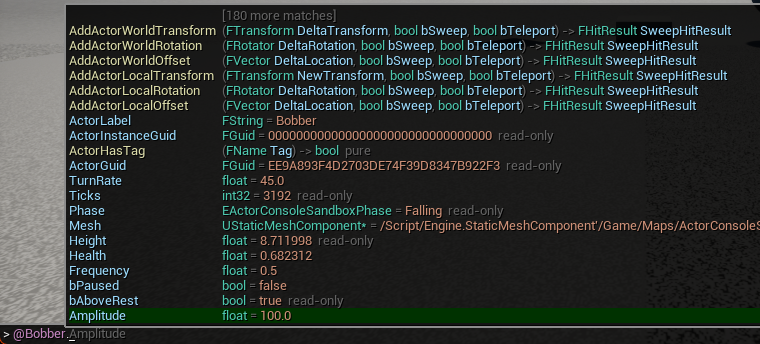
After ., suggestions show variable types and current values, and function parameters and results:
The same commands work in Tools > Actor Console. You can also use the Output Log: select Actor in the menu beside the command field.
Start a command with a class name, or use @ followed by an actor's name. Use dots to access an actor's variables and components. You can read a value, change it or call a function:
| Command | What it does |
|---|---|
@Player.CharacterMovement.MaxWalkSpeed | Reads a variable of the actor named Player. |
@Player.CharacterMovement.MaxWalkSpeed 1200 | Changes the value to 1200. = 1200 works too. |
ACharacter.CharacterMovement.MaxWalkSpeed 1200 | Changes the value on every character in the world. |
@Player.GetActorLocation() | Calls a function and shows its result. |
@Player.SetActorLocation(NewLocation=0 0 300, bTeleport=true) | Calls a function using parameter names. |
KismetSystemLibrary.PrintString("Hello") | Calls a static function; no actor is needed. |
@"Point Light 2".LightComponent.Intensity 5000 | Changes Intensity on an actor whose name contains spaces. |
@Player.Tags[0] Boss | Changes an array element. Use @Shop.Prices[Sword] to read a map entry. |
@Player.RootComponent.RelativeLocation.Z 300 | Changes one struct member and moves the component. |
Uppercase and lowercase letters work the same way. Put names with spaces or special characters in quotes, as in @"Point Light 2". Inside quoted names, use \" for a quote and \\ for a backslash. These are the only supported escape sequences.
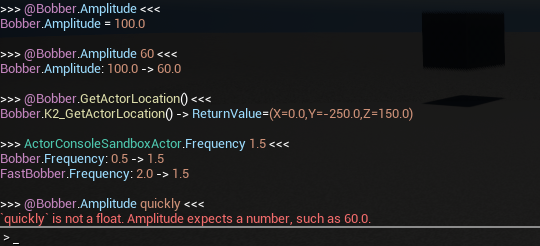
The console shows read values, changes and function results. A command on a class reports each object it changes. If a value is invalid, the message shows the expected type:
Pawn or APawn for a C++ class, and BP_Enemy or BP_Enemy_C for a Blueprint class. Classes can also select components and other objects. For example, StaticMeshComponent.CastShadow false changes every static mesh component in the level.@. Use the label shown in the Outliner or the object name. Autocomplete lists both. Actors created during play may have names such as @BP_Player_C_0. @Player means an actor named Player; it does not automatically select the player's character. If several actors have the same name, the command stops and lists the matching actors.stat fps and r.ScreenPercentage 50, work as usual.A path identifies a value or function on an object. Use dots to access components, object references and struct members. Use brackets for array indices and map keys.
For example, @Player.Controller.PlayerCameraManager.DefaultFOV reads DefaultFOV from the Player actor's camera manager.
For each name after a dot, Actor Console checks for a variable first, then a component on an actor, then a function if the name is followed by (. You can access a component by its own name or by the variable that stores it.
If an object reference is None, the command stops and identifies that reference in the message.
Enter @Player.CharacterMovement.MaxWalkSpeed to read a value. The console shows the object, the path and the current value:
BP_Player_C_0.CharacterMovement.MaxWalkSpeed = 600.0
Autocomplete shows the variable's type beside the suggestion. Reading a variable shows its stored value. It does not call a getter function.
Enter a value after the variable name to change it. You can use Unreal's format, such as (X=0.0,Y=0.0,Z=300.0), or one of the shorter forms below:
| Type | You can write |
|---|---|
bool | true, false, 1, 0 |
| a struct of numbers | Numbers separated by spaces or commas. Use 0 0 300 for a vector, or 0 90 0 for a rotator (Pitch, Yaw, Roll). |
| an enum | MOVE_Walking, Walking, or its number |
| an object | None, an actor as @Name, or the path of an object already in memory |
| a string or a name | Text in quotes, or the remaining text in the command |
bHidden, RelativeLocation, a light's Intensity and a mesh component's StaticMesh through the engine functions needed to update them.MaxWalkSpeed: 600.0 -> 1200.0.Add parentheses after a function name to call it. Enter arguments inside the parentheses and separate them with commas.
Use parameter names to enter only the arguments you need: @Player.SetActorLocation(NewLocation=0 0 300, bTeleport=true).
You can leave arguments out. In the editor and Play In Editor, the function's default values are used when available. In a packaged game, an argument you leave out uses zero, false or an empty value, depending on its type. The console shows all argument values used for the call.
->. For example: -> ReturnValue=true, SweepHitResult=(...). Do not enter output parameters as arguments. Reference parameters that you enter are also shown with their final values.) is optional at the end of a command. For example, @Player.GetActorLocation( runs as @Player.GetActorLocation().K2_ prefix is optional, so you can enter GetActorLocation. In the editor and Play In Editor, you can also use the name shown on the Blueprint node.GetCurrentLevelName.Delay, cannot be called from a command.Start a command with + to keep its value on screen. This is called a watch. Use ++ to also show a graph of the value. Values appear at the top of the game viewport and update while you play.
Use - followed by a path to stop watching that value. Enter only - to remove all watched values and graphs.
| Command | What it does |
|---|---|
+@Player.CharacterMovement.MaxWalkSpeed | Shows the value, updated every frame. |
++@Player.RootComponent.RelativeLocation | Shows the value and a graph of the last 10 seconds. X, Y and Z have separate lines. |
-@Player.CharacterMovement.MaxWalkSpeed | Stops watching this value. |
- | Removes all watched values and graphs. |
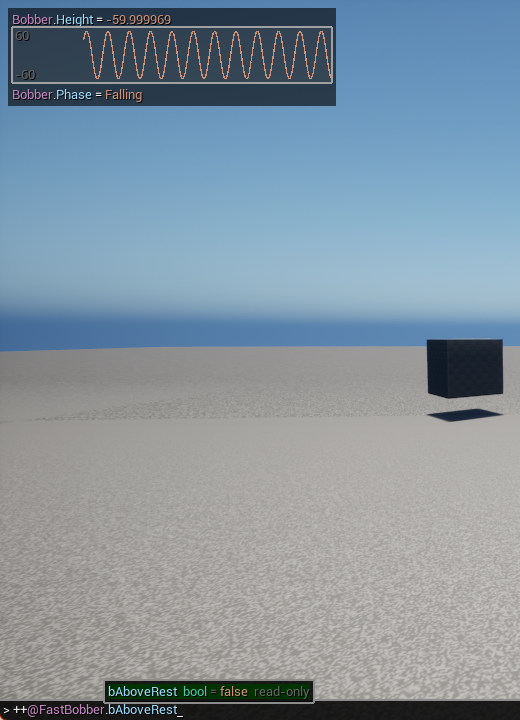
Enter a watch command in the same way as any other command. In this example, ++@FastBobber.bAboveRest adds a third watched value:
Each watched value has its own row. Values watched with ++ also have a graph below that row:
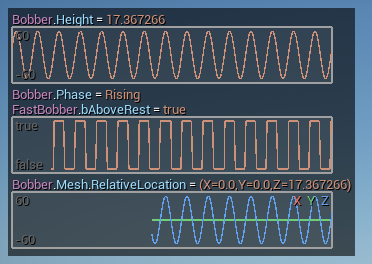
+APawn.bHidden.bool values. Vectors, rotators and colours have a separate line for each member. A bool graph shows values between false and true. Text and objects display a value without a graph.- to list the values you are watching. Each suggestion indicates whether it has a graph: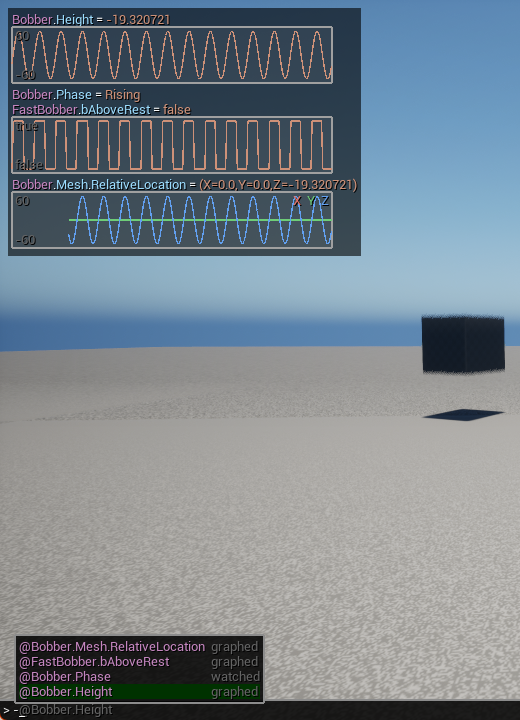
| Where | Available | Hints |
|---|---|---|
| In-game console, ~ | PIE, Debug and Development builds | Beside each suggestion. Function parameters and value formats appear above the suggestions. |
| Actor Console tab, Tools > Actor Console | Editor | Hint and value columns. Function parameters and value formats appear below the command. |
| Output Log, with Actor selected | Editor | In the tooltip |
ExecuteConsoleCommand, -ExecCmds, Unreal's console | Wherever the plugin runs | None |
Press ~ once to open the small in-game console. It closes after each command. Press ~ twice from the game to open the full console, which stays open and shows command results.
ExecuteConsoleCommand or -ExecCmds, add ActorConsole before the command. For example: ActorConsole APawn.bHidden true. This sends the command to Actor Console through Unreal's command system.UActorConsoleGameConsole as its base class to add Actor Console's in-game features.| After | Suggested | Hint |
|---|---|---|
@ | Actors in the world, by label and object name | Actor class |
| The first word | Classes with objects in the world, then classes with static functions | 12 in world or static functions |
. | Variables, components and functions | Variable type and value, component class, or function parameters and results |
[ | Available indices or keys | Element type and value |
| A variable and a space | true / false, enum entries, None and actors | Value type and format |
( or , | Values for the current parameter | Function parameters and results, with the current parameter highlighted, plus its type and format |
Variable hints can also include these labels:
replicated: the server can overwrite a change made on a client.read-only: Blueprint cannot change the variable, but Actor Console can change it during play.setter: the variable has a function that applies a new value.A function hint shows its parameters and result types. This is called its signature, and it uses the same parameter roles as the Blueprint node. For example: (FVector NewLocation, bool bSweep, bool bTeleport) -> bool, FHitResult SweepHitResult.
Uppercase and lowercase letters work the same way. You can also type the first letters of several words: gal finds GetActorLocation.
Each suggestion shows the text it will insert, such as true, @Player or CharacterMovement. Accept a suggestion to complete that part of the command.
When you enter a value, the hint shows the required format. This works even when there are no suggested values. For example: FVector (X=0,Y=0,Z=0) or 0 0 0.
After an enum variable and a space, autocomplete lists its entries:

When you enter function arguments in the in-game console, the signature appears above the function name. The current parameter is highlighted, with value suggestions above it:

In the in-game console and the Actor Console tab, colours help identify classes, actors, variables, components, functions and values. The same colours appear in commands, suggestions, hints and results. Labels such as replicated use a less bright colour. Errors and warnings have their own colours.
Colours indicate the role of each part of a command. They do not confirm that a name is correct. If a name is misspelled, you see an error when you run the command. You can change the colours in Settings.
Outside Play In Editor, you can read values and use autocomplete. Start Play In Editor to change values and call functions. Commands then work on actors in the running game.
If you try to change a value or call a function outside PIE, the command stops with this message: The editor is read-only outside PIE. Writes and calls run in PIE or in a game.
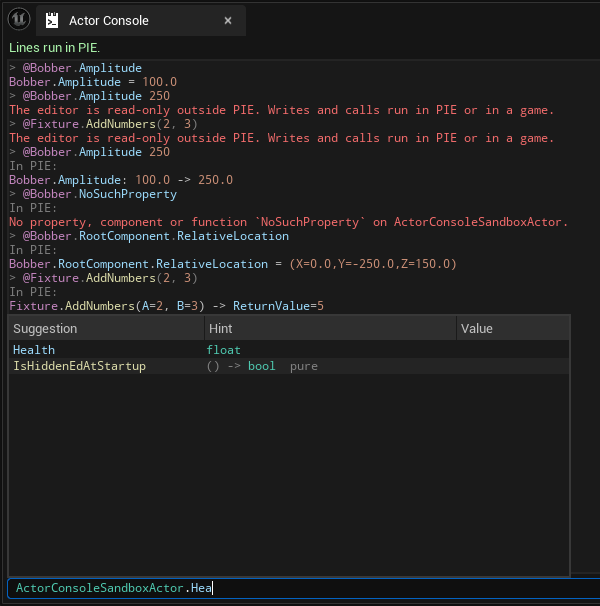
The Actor Console tab shows the current world and the result of each command:
Templates define defaults for new objects. Shared assets, such as meshes, materials and data assets, can be used by many objects. Changes to either can affect more than the running game.
Actor Console lets you read these objects, but blocks direct changes and function calls on them. This includes class default objects, Blueprint component templates and Child Actor templates. The check applies to the final object in a path, including objects accessed through a reference. If the command is blocked, the message identifies the object.
Templates cannot be selected as values. Assets can: you can assign a different mesh to a component without changing the mesh asset itself. For example: @Rock.StaticMeshComponent.StaticMesh /Game/Meshes/SM_Boulder.SM_Boulder.
Functions you call still run their own code. If that code changes an asset, the function can still make that change. Actor Console does not limit what your function does internally.
Each console works in its own client or server world.
Package your game with Actor Console enabled. Use a Debug or Development build.
| Editor and PIE | Debug, Development | Shipping | |
|---|---|---|---|
| Actor Console | yes | yes | not included |
@ by label | yes | yes | - |
| Default argument values, Blueprint node names | yes | no | - |
Enter the values for each function parameter in a packaged game. Default parameter values from the editor are not available. A parameter you leave out uses zero, false or an empty value, depending on its type.
Use function names such as GetActorLocation in packaged games. Names shown only on Blueprint nodes are not available there. The K2_ prefix remains optional.
Actor Console is not included in Shipping builds. If your C++ module uses its API, follow the C++ setup instructions.
Project Settings > Plugins > Actor Console:
| Setting | Default | Meaning |
|---|---|---|
| Max Printed Instances | 100 | Maximum objects shown when reading a class. The result includes a count of objects not shown. Changes and function calls report every object. |
| Max Value Length | 200 | Maximum displayed value length. Longer values are shortened in the console; the log contains the full values. |
| Max Suggestions | 200 | Maximum autocomplete suggestions |
| Replace Game Console | on | Use Actor Console's in-game console, unless the project has a custom console class. |
| Color Syntax | on | Colour commands, suggestions, hints and results by their parts. When off, each console uses its normal colours. |
| Class Color | teal | Classes and types shown in hints and function signatures |
| Actor Color | orchid | Actor names, such as @Player, and object names in results |
| Property Color | light blue | Variables, components, and names of parameters, arguments and results |
| Function Color | pale yellow | Functions |
| Value Color | orange | Numbers, text, true, None, enum entries, indices, keys and default values |
| Error Color | red | Error messages |
| Warning Color | yellow | Warning messages |
Add ActorConsoleRuntime to your module's dependencies only for non-Shipping builds. In your module's .Build.cs, put this statement:
PrivateDependencyModuleNames.Add("ActorConsoleRuntime");
inside an if block with this condition:
Target.Configuration != UnrealTargetConfiguration.Shipping
In C++, guard all Actor Console includes and code with #if !UE_BUILD_SHIPPING and #endif. This also applies to the examples below.
Include ActorConsole.h with #include "ActorConsole.h".
Create a context for the world you want to use:
FActorConsoleContext Context(GetWorld());
Run a command and store its result:
FActorConsoleResult Result = FActorConsole::Execute(TEXT("APawn.bHidden true"), Context);
The result contains the objects, values, arguments and outputs of the command.
To add autocomplete to your own interface, use FActorConsole::Complete. It returns suggestions for a command and a cursor position.
Some properties need a function call to update the game after their value changes. Register that function with FActorConsoleEffects::RegisterFunction.
For example, use SetBrightness when the Brightness property of UMyLampComponent changes. First store the class:
const UClass* LampClass = UMyLampComponent::StaticClass();
Then register the property and its setter:
FActorConsoleEffects::RegisterFunction(LampClass, TEXT("Brightness"), TEXT("SetBrightness"));
For custom update logic, use FActorConsoleEffects::Register with your own callback.
Use UActorConsoleGameConsole as the base class of your console to add Actor Console's in-game features.
During cooking, Actor Console records which parameter of each function supplies its world context. The packaged game uses this record to call functions with the correct arguments.
If this record is missing or does not match the build, Actor Console blocks calls whose world context it cannot identify. The message explains the problem. Package the game again with Actor Console enabled.
Ask questions, report bugs and suggest features in #actor-console, the plugin's own channel on Discord.